How to Pair Your iPad with a Keyboard in 2024
Introduction
Connecting your iPad with a keyboard can completely change how you interact with your device. Whether used for work, school, or leisure activities, adding an external keyboard significantly enhances your typing experience while boosting productivity. This comprehensive guide details every necessary step, from initial compatibility checks to overcoming any roadblocks encountered, ensuring your iPad transformation process is seamless and efficient.
Understanding Compatibility
Before diving into the pairing process, it is crucial to identify which keyboards are compatible with your specific iPad model and iOS version.
Checking Your iPad Model and iOS Version
- Launch the ‘Settings’ app on your iPad.
- Select ‘General’ and then tap ‘About’.
- Record your iOS version and model ID to guarantee support for your chosen keyboard.
The compatibility of your keyboard largely depends on the connection type your iPad supports, such as Bluetooth or Smart Connector.
Different Types of Compatible Keyboards
Various keyboards are suitable for iPads:
– Bluetooth Keyboards: Adaptable to numerous iPad models, these are versatile options.
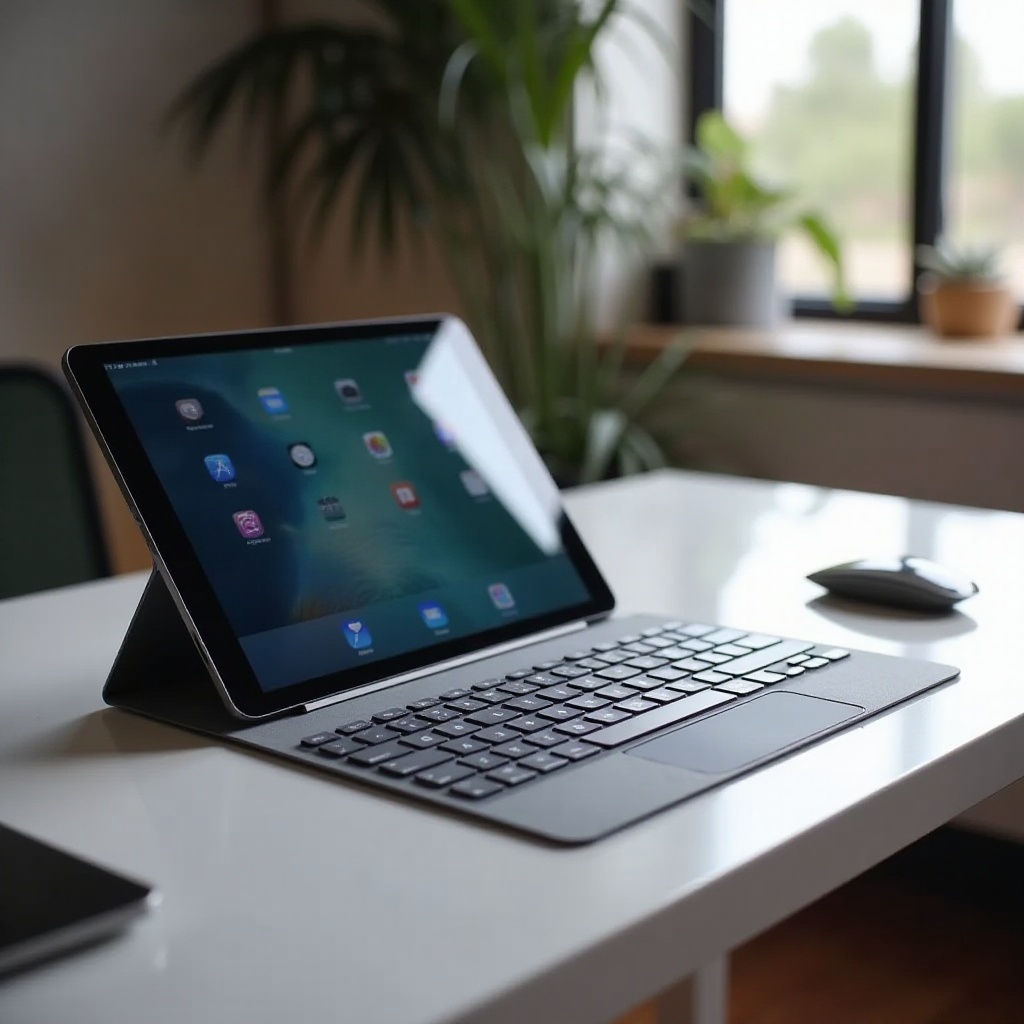
– Smart Connector Keyboards: Designed for newer iPad models, these keyboards use the built-in Smart Connector.
– USB Keyboards: Although less flexible, they can be used with an adapter.
Considering the functions and capabilities of your iPad will help you choose the keyboard type that best fits your needs.
Preparing Your Devices
After confirming compatibility, it’s important to properly prepare both the iPad and the keyboard for the pairing process.
Preparing Your iPad
- Ensure the iPad is either charged or connected to a power source.
- Activate Bluetooth by navigating to ‘Settings’ > ‘Bluetooth’ and toggling it ‘On’.
Preparing Your Keyboard
- Charge your keyboard if it is wireless.
- Activate pairing mode on Bluetooth keyboards following the user manual instructions.
These preparatory steps minimize potential disruptions during the pairing process, ensuring a more effortless connection between your devices.
Step-by-Step Guide to Pairing
With your devices prepared, you can now proceed to pair them successfully.
Pairing a Bluetooth Keyboard
- On your iPad, go to ‘Settings’ > ‘Bluetooth’.
- Ensure Bluetooth is on.
- Your keyboard should be listed under ‘Other Devices.’ Select it to initiate pairing.
- Some keyboards might require a PIN input—follow any on-screen instructions provided.
Pairing a Smart Connector Keyboard
- Align the keyboard’s smart connector with the corresponding connector on the iPad.
- Once connected, your keyboard is immediately ready for use, with no further pairing required.
Following these detailed instructions will simplify your experience, facilitating easy connection and use of various devices and accessories.
Enhancing Your Productivity
Once your keyboard is connected, additional strategies exist to maximize your iPad and keyboard setup.
Utilizing Keyboard Shortcuts on iPad
Keyboard shortcuts boost work speed and efficiency:
– Command + Space: Open Spotlight Search
– Command + Tab: Switch between open apps
– Command + H: Return to the Home screen
These shortcuts decrease reliance on touchscreen commands, making repetitive tasks quicker.
Customizing Keyboard Settings
- Access ‘Settings’ > ‘General’ > ‘Keyboard’.
- Adjust settings like auto-correction, predictive text, or add keyboards for different languages.
Personalizing settings permits you to optimize keyboard interactions for more convenience, further improving your workflow.
Troubleshooting Common Issues
Even after following all steps carefully, pairing can sometimes pose challenges. Here are possible solutions for frequent issues.
Bluetooth Connection Issues
- Ensure both devices remain within close proximity.
- Try restarting your iPad and keyboard before attempting re-pairing.
- Disconnect other Bluetooth devices that may interfere with pairing.
Smart Connector Problems
- Check for any debris in the connectors.
- Ensure your iPad is running the latest iOS version.
- Re-align the smart connector to achieve a secure fit.
Addressing these issues effectively ensures your setup stays reliable, maintaining productivity with minimal disruption.

Conclusion
Pairing an iPad with an external keyboard unlocks a wealth of potential, transforming it into a powerful, versatile tool for diverse applications. By utilizing shortcuts and customized settings, iPad users can tailor their experience, enhancing both functionality and productivity. As you embrace these capabilities, this guide will support you in fully realizing your iPad’s potential, ushering in innovative methods for increasing your efficiency.
Frequently Asked Questions
Can I use a Windows keyboard with my iPad?
Yes, most Bluetooth Windows keyboards can pair with an iPad. Follow the standard Bluetooth pairing instructions.
What should I do if my keyboard isn’t connecting?
Confirm Bluetooth is on for both devices and the keyboard is in pairing mode. Refer to the troubleshooting section for more advice.
How do I disconnect a keyboard from my iPad?
Navigate to ‘Settings’ > ‘Bluetooth’, find your keyboard listed under ‘My Devices’, and select ‘Forget This Device’.