How to Connect Hotspot to Nintendo Switch
Introduction
Gaming on the Nintendo Switch lets you enjoy play wherever you are. But accessing the internet away from home can be tricky. That’s where hotspots come in handy. This guide teaches you how to connect your Nintendo Switch to a mobile hotspot, ensuring uninterrupted gaming and updates on the go.
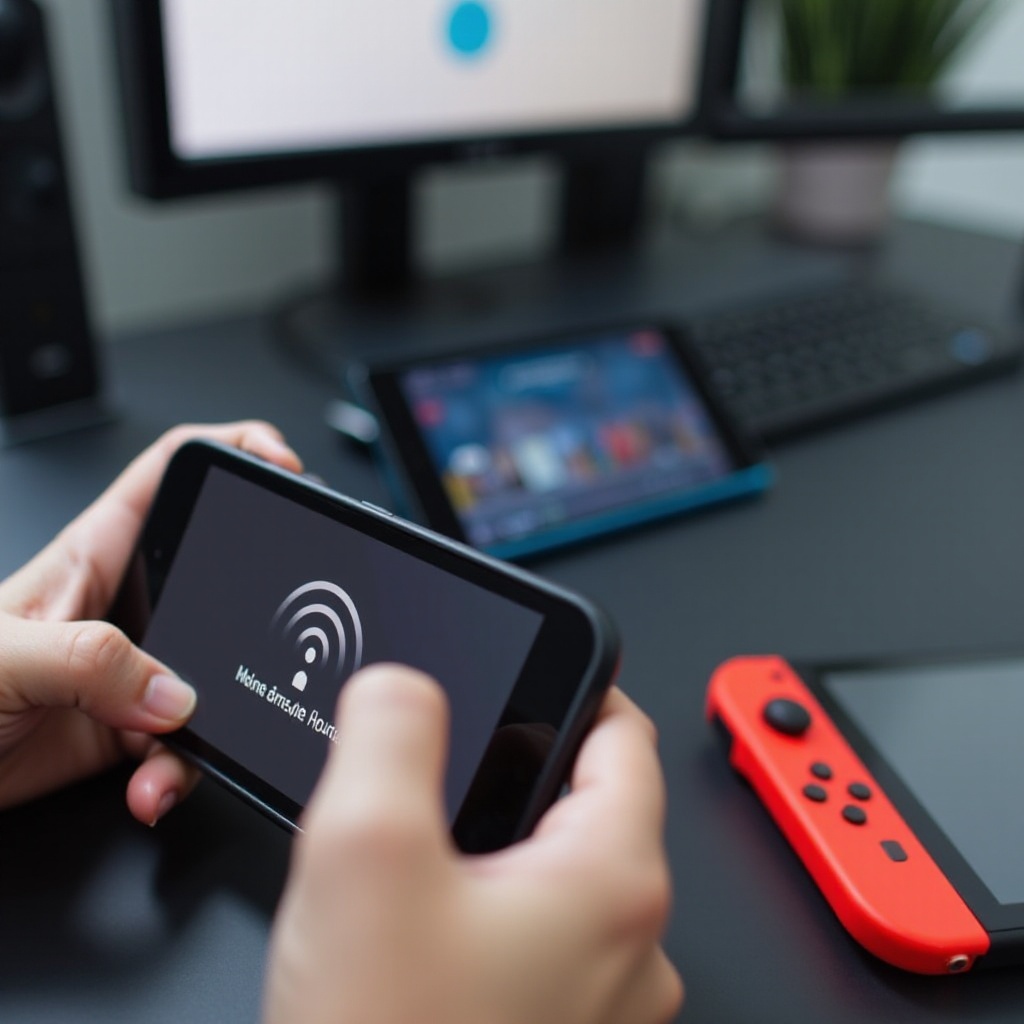
Understanding Hotspots and Connectivity
Before connecting, it’s key to know what a mobile hotspot is and how it works.
-
What is a Mobile Hotspot?
A mobile hotspot turns your smartphone’s or a dedicated device’s data into a Wi-Fi signal, acting as a portable router. -
Types of Hotspots: Smartphone vs. Standalone Device
Smartphones often have a built-in hotspot function. Alternatively, standalone devices, or portable Wi-Fi routers, provide dedicated connections with larger data allowances. -
Benefits and Limitations for Gaming
Hotspots offer internet wherever you are, great for gaming anywhere. But speed and data limits may constrain your activities, especially for online multiplayer games.
Understanding these basics prepares you for setting up your device connections.
Preparing Your Devices for Connection
Preparing both your Nintendo Switch and hotspot is crucial for a stable connection.
-
Checking Device Compatibility
Ensure both devices support Wi-Fi sharing and the Switch is updated with the latest firmware. -
Ensuring a Stable Internet Connection
Check the mobile data connection strength. A weak signal can result in slow speeds. -
Data Plan Considerations
Be mindful of data plan limitations as gaming uses significant data.
Proper preparation facilitates a smooth connection process.
Step-by-Step Guide to Connect Nintendo Switch to a Hotspot
Connecting your Nintendo Switch to a hotspot is straightforward:
- Enabling Hotspot on Your Device
- For smartphones: Access Settings, find ‘Hotspot’, and enable it.
-
For standalone devices: Turn on the device and ensure it’s broadcasting Wi-Fi.
-
Accessing Nintendo Switch Internet Settings
- Select ‘System Settings’ from the home screen.
-
Scroll to ‘Internet’ and choose ‘Internet Settings’.
-
Finding and Connecting to the Network
- Let the Switch search for networks. Select your hotspot.
- Enter the password if required and connect.
After successful connection, your Switch is online for gaming or updates.
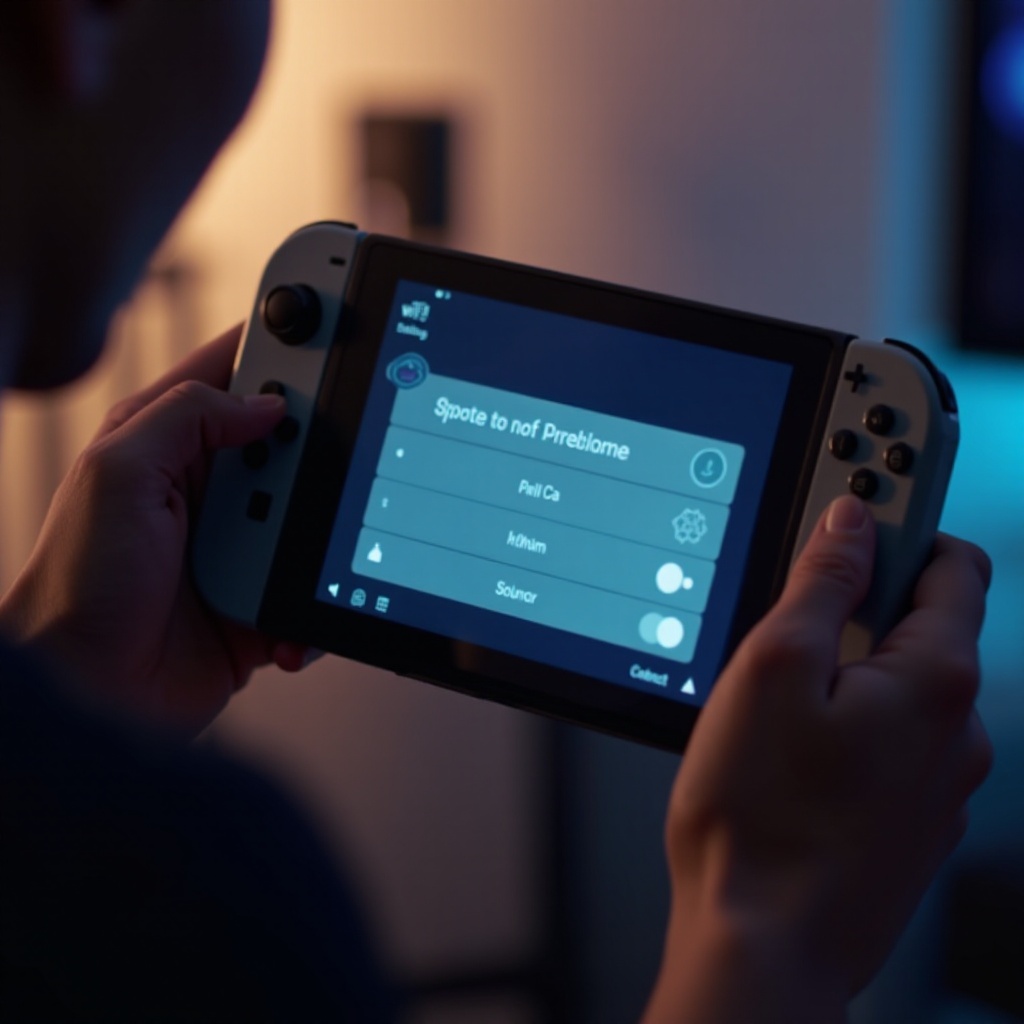
Troubleshooting Connection Issues
Encounter problems? Here’s how to fix them:
-
Common Connection Problems
Confirm the hotspot is active and within range. Check other devices to rule out hotspot issues. -
Improving Signal Strength
Move the hotspot closer to your Switch to minimize interference. -
Device and Network Resets
Restart your smartphone, hotspot device, or Switch. Consider resetting network settings if issues continue.
These solutions ensure a consistent gaming connection.
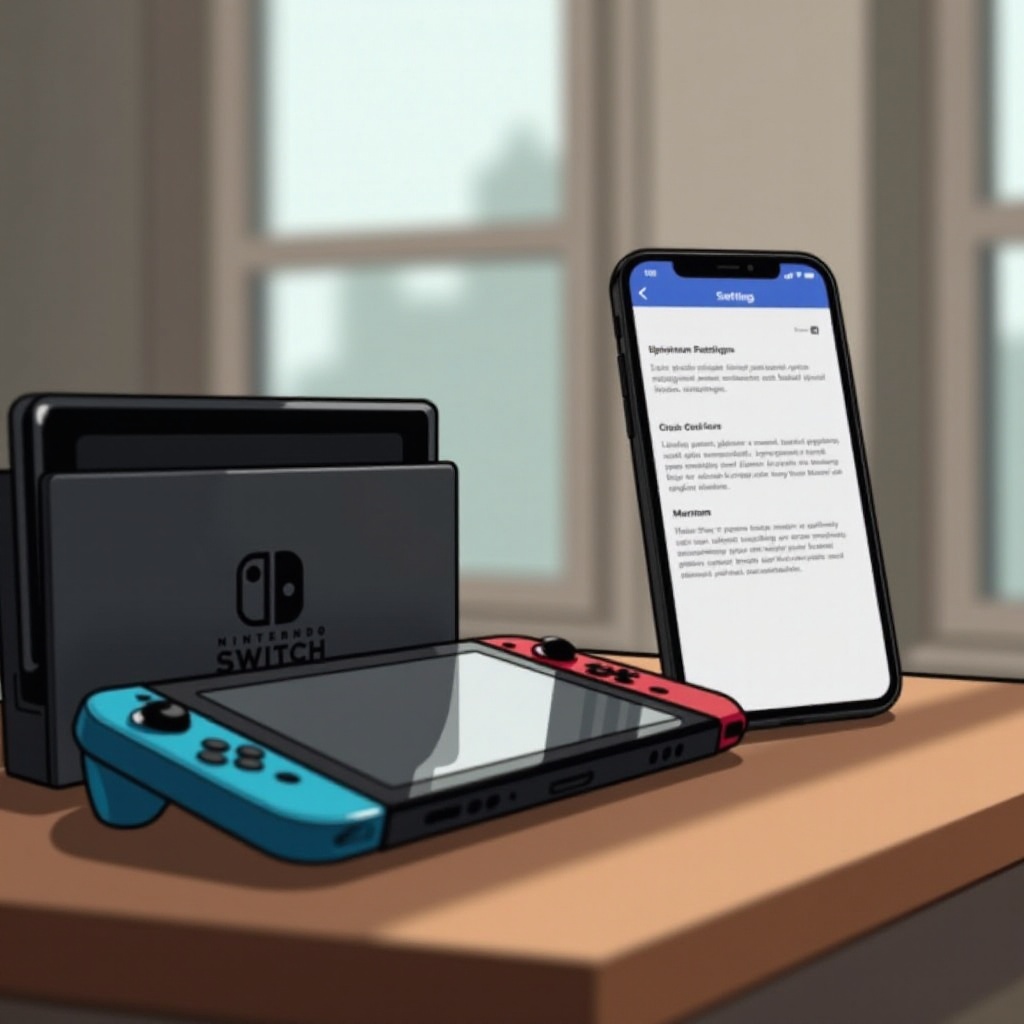
Maximizing Your Gaming Experience With a Hotspot
To enhance gaming with a hotspot, consider the following tips:
-
Reducing Data Usage During Gaming
Avoid background apps consuming data. Postpone updates and downloads. -
Adjusting Game Settings for Performance
Lower in-game graphics quality to decrease data use and enhance performance. -
Efficient Battery Management
Keep devices charged, as games and hotspots rapidly drain power.
Optimizing these areas improves your gaming enjoyment and efficiency.
Alternative Solutions for Mobile Gaming
If hotspots fall short, explore these options:
-
Utilizing Public Wi-Fi Networks
Public places like cafes and libraries often provide free Wi-Fi. -
Portable Gaming Routers Overview
Portable routers offer stable connections and better data plans. -
Advantages and Disadvantages
Though effective, portable routers may incur extra costs and require separate data plans.
These alternatives provide additional ways to maintain connectivity.
Conclusion
Connecting your Nintendo Switch to a hotspot allows for gaming flexibility and enjoyment anywhere. By understanding and preparing the setup, troubleshooting problems, and optimizing your setup, seamless gaming experiences await. Ensure steady internet connectivity and prepare your devices to continue the fun uninterrupted.
Frequently Asked Questions
Can I use any mobile hotspot for my Nintendo Switch?
Yes, any mobile hotspot providing stable Wi-Fi and adequate data speeds will work.
How much data does online gaming consume?
Data consumption varies, but most games use around 50-100MB per hour. Monitor use to prevent overage charges.
What do I do if my Switch won’t connect to the hotspot?
Check network settings, restart the hotspot and Switch, and ensure there are no signal obstacles.