How to Connect Your Anker Keyboard to an iPad: A Detailed Guide
Introduction
Using an Anker keyboard with your iPad can transform your tablet into a powerful productivity tool. Anker keyboards are renowned for their reliability and user-friendly design, making them popular among iPad users. In this guide, we will explore how to seamlessly connect your Anker keyboard to your iPad and troubleshoot any potential issues.
Understanding Anker Keyboard Compatibility
Before you begin, it’s essential to confirm that your iPad is compatible with your Anker keyboard. Most modern iPads are compatible with Anker’s range of keyboards, but checking the specifications of both devices can save time and prevent future connection problems. This preliminary step ensures you are ready to proceed to the next phase of the connection process.
Preparing Your Devices for Connection
To establish a stable connection, both your iPad and Anker keyboard should be fully charged. A well-charged device prevents disruptions during the pairing process. Furthermore, place both devices close together to minimize interference and create a strong Bluetooth link, ensuring a smooth connection experience.
Step-by-Step Guide to Connecting Anker Keyboard to iPad
Connecting your Anker keyboard to an iPad can be done in a few straightforward steps:
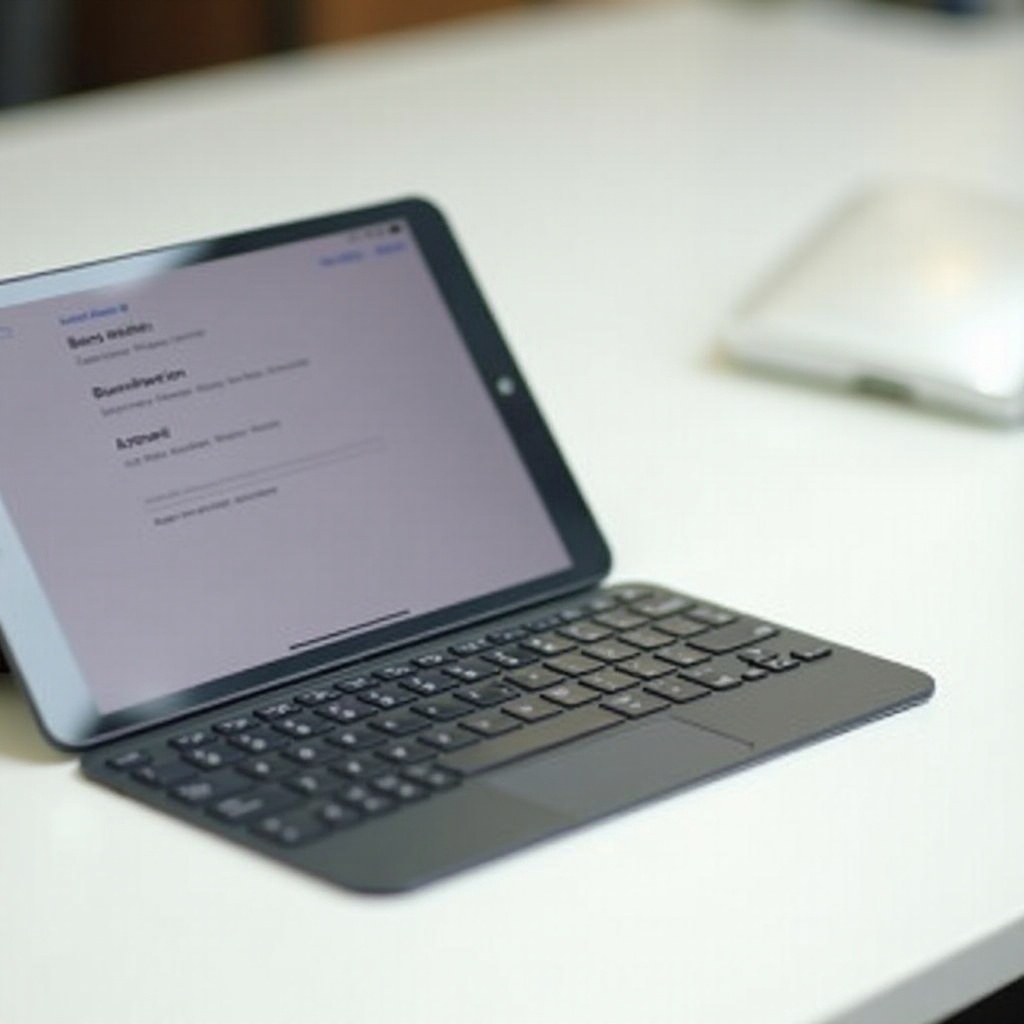
1. Turn on the Anker keyboard by locating the power switch or button and setting it to Bluetooth mode. A flashing LED light usually indicates pairing mode.
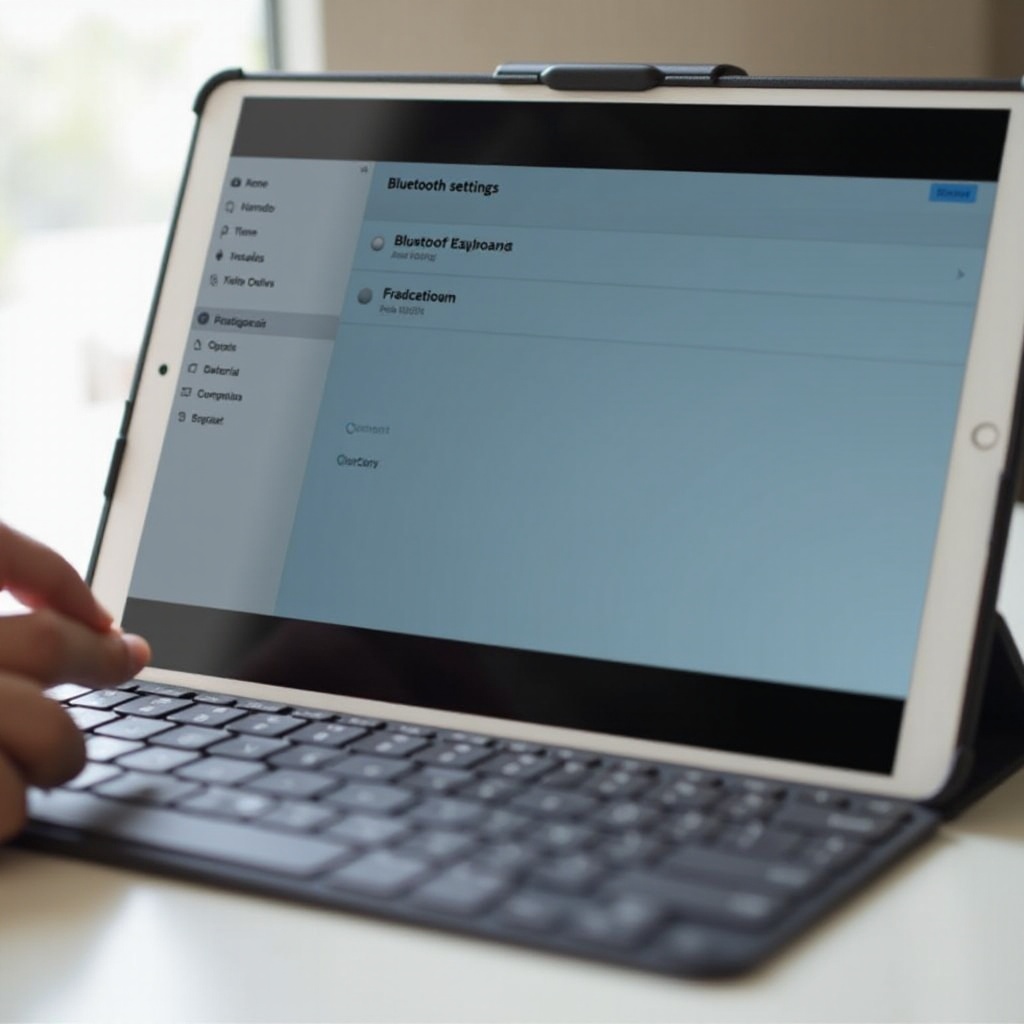
2. On your iPad, go to ‘Settings,’ select ‘Bluetooth,’ and toggle it on. This will display a list of available Bluetooth devices.
3. Find your Anker keyboard in the list and tap it to pair. Once connected, it will show as ‘Connected’ on your iPad’s screen.
This process should successfully pair your devices. If you encounter difficulties, the next section offers solutions to common connection problems.
Troubleshooting Connection Issues
If your keyboard doesn’t connect, try these troubleshooting tips:
– Make sure Bluetooth is enabled on both devices.
– Restart your iPad and keyboard to resolve temporary glitches.
– In the iPad’s Bluetooth menu, select your Anker keyboard, choose ‘Forget This Device,’ and retry the pairing process.
– Check the keyboard’s user manual for specific instructions to reset settings.
These tactics typically resolve connectivity issues, allowing you to efficiently use your Anker keyboard.
Customizing Your Anker Keyboard Settings on iPad
Once connected, personalize your keyboard settings to improve your typing experience. Access keyboard settings on your iPad to adjust layouts, enable shortcuts, and tailor functions to suit your needs. This customization aligns the device functionalities with your personal workflow, maximizing your productivity.
Tips for Maximizing Productivity
Leverage your Anker keyboard for enhanced productivity with these strategies:
– Download productivity apps like Microsoft Office or Google Suite, optimized for keyboard use.
– Set up custom keyboard shortcuts to expedite common tasks.
– Use apps designed specifically for external keyboards to further streamline your work.
By integrating these tips into your routine, you’ll unlock the full potential of your Anker keyboard and iPad duo.
Conclusion
Connecting an Anker keyboard to your iPad is straightforward with the right guidance. These steps and tips are designed to assist you in creating an efficient mobile workstation, ready to handle any task with ease.
Frequently Asked Questions
How do I know if my Anker keyboard is compatible with my iPad?
Check your iPad model and compare it with the compatibility list on Anker’s website or product documentation.
What should I do if my Anker keyboard won’t connect to my iPad?
Ensure Bluetooth is on, reboot both devices, or disconnect and reconnect the keyboard in Bluetooth settings. A manual reset might also help.
Can I use my Anker keyboard with other devices as well?
Yes, Anker keyboards work with various Bluetooth-enabled devices, including computers, tablets, and phones. Refer to the manual for multi-device pairing instructions.