How to Remove an SD Card from Your Nintendo Switch
Introduction
Safely removing an SD card from your Nintendo Switch ensures your game data stays intact and your console remains in perfect working condition. Whether you’re upgrading your storage or troubleshooting an issue, knowing the correct process is essential for avoiding potential data corruption or hardware issues.
Understanding the Importance of SD Cards in Your Switch
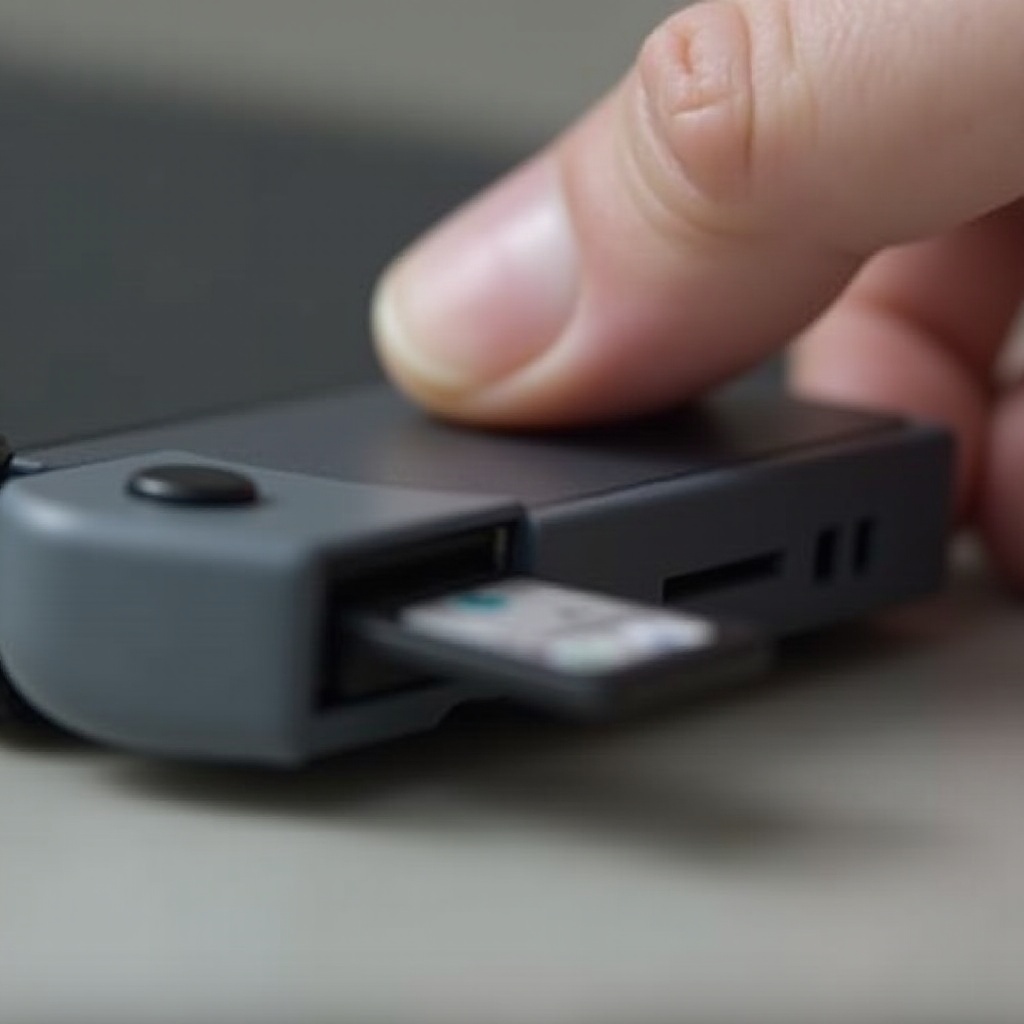
SD cards enhance the storage capacity of your Nintendo Switch, allowing for more games and downloadable content. With the built-in memory often proving insufficient for avid gamers, SD cards offer an essential upgrade. Knowing the card’s role helps you appreciate the care needed during its removal. It’s crucial to use SD cards compatible with your console, typically microSD, microSDHC, and microSDXC cards.
Preparing Your Nintendo Switch for SD Card Removal
When you’re ready to remove your SD card, begin by preparing your console to ensure a smooth and safe process.
-
Saving Game Progress: Before initiating the removal, manually save your game progress to prevent loss. While most games auto-save, confirming your progress is secured adds an extra layer of safety.
-
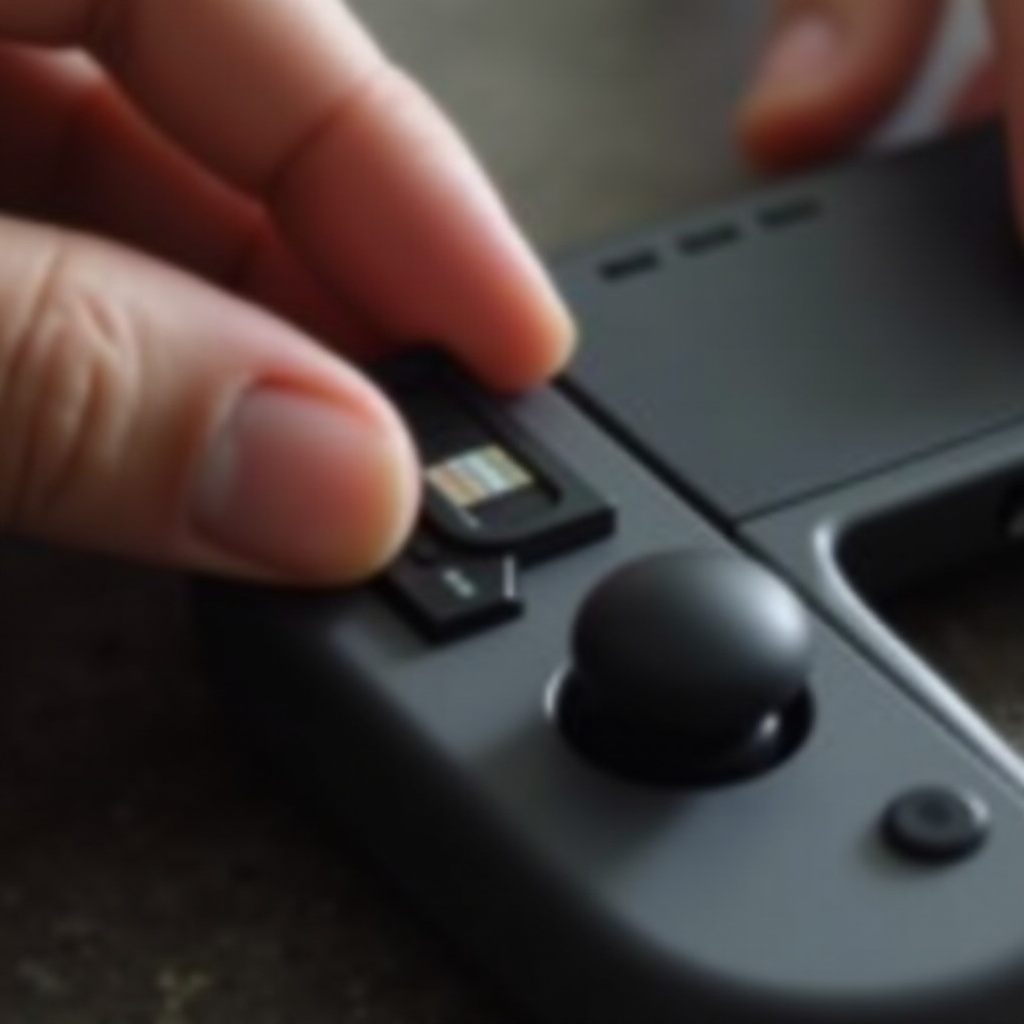
Powering Off Your Console Safely: Turning off your Switch is vital. Hold the power button on the console’s top until the power menu appears. Select ‘Power Options,’ then ‘Turn Off.’ Attempting to remove the SD card while the console is on could lead to data corruption.
With your game progress safely stored and your console powered down, it’s time to proceed with the actual removal process.
Step-by-Step Guide for SD Card Removal
Following these steps will help you remove the SD card without hitches.
-
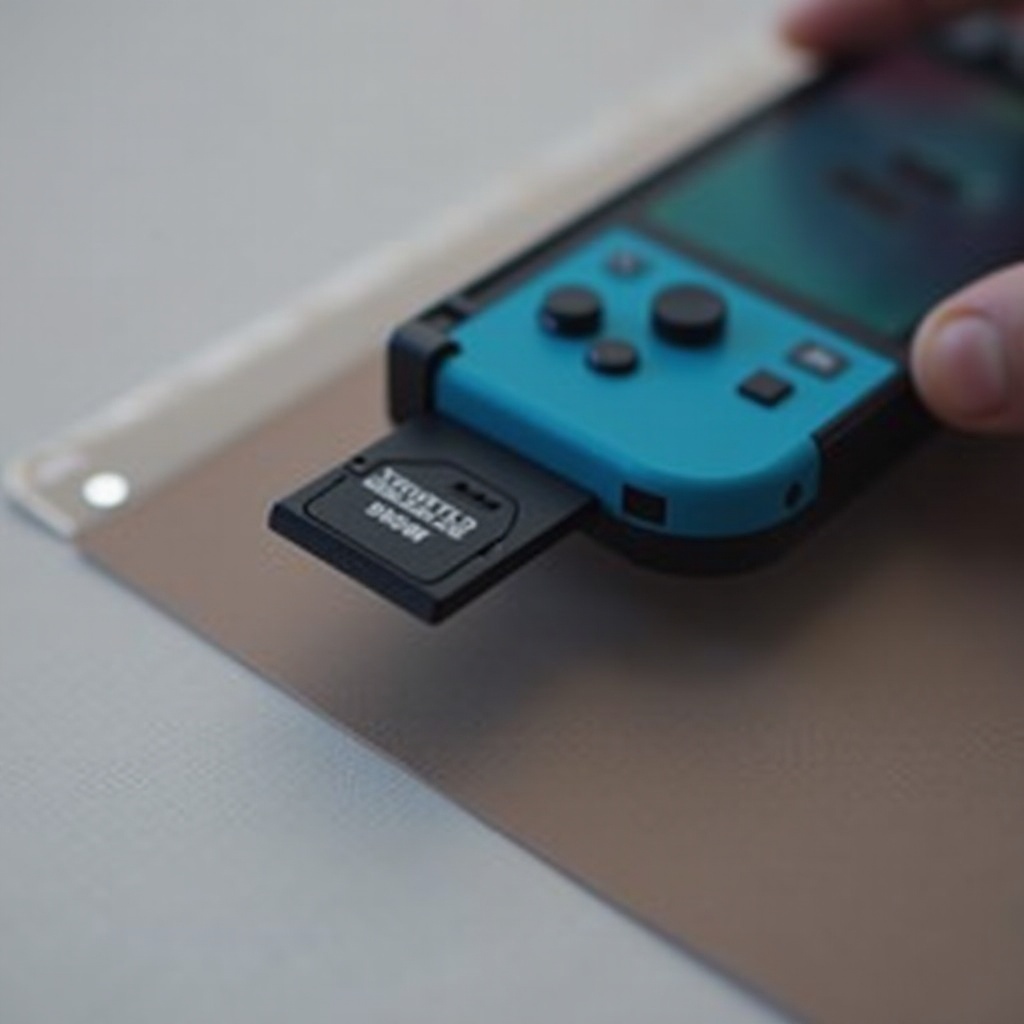
Locate the SD Card Slot: The SD card slot is readily accessible beneath the Nintendo Switch’s kickstand, situated on the device’s backside. Carefully open the kickstand to expose the slot.
-
Eject the SD Card Properly: Once visible, gently press on the SD card. A soft click will indicate it’s ready to eject. Pull it out slowly to avoid any damage.
Learning the correct removal technique is half the battle. Next, let’s address how to deal with any issues that might occur during the removal process.
Troubleshooting Common Issues During Removal
Despite taking precautions, you could still encounter obstacles. Here are ways to tackle some common problems.
-
Handling Stuck SD Cards: In instances where the card doesn’t eject easily, avoid forcing it. Restart the Switch and retry. Often, a restart realigns the components, allowing smoother ejection.
-
Resolving SD Card Read Errors: If the console doesn’t recognize the SD card after reinsertion, remove it again, clean its contacts gently with a soft cloth, and try re-inserting it. Consistency in recognizing the card is typically achieved by ensuring a solid connection.
Now that you can competently remove and troubleshoot your SD card, let’s discuss maintaining its longevity and managing the data effectively.
Tips for Maintaining and Managing SD Card Data
Ensuring your SD card remains in top condition will enhance your Nintendo Switch experience.
-
Organizing and Backing Up Game Data: Regularly backing up your game data onto a computer or a cloud service safeguards against accidental loss. Leverage the Switch’s data management settings to orderly organize and back up files.
-
Extending SD Card Lifespan: Protect the card from physical harm by using a dedicated case when not in use. Ensure your Nintendo Switch and SD card firmware stay updated. Regularly check compatibility updates to maintain optimal performance.
With these steps, your SD card remains well-maintained, supporting extensive game storage needs.
Conclusion
By following this guide, removing an SD card from your Nintendo Switch becomes a straightforward task. You’ll efficiently preserve your game data and prevent potential hardware issues. Consistent care of your SD card ensures long-lasting, enjoyable gaming sessions.
Frequently Asked Questions
What should I do if my Switch doesn’t recognize the SD card?
Ensure the card is correctly seated. If issues persist, test with another card to determine if the issue is with the console.
Is it safe to remove the SD card while the Switch is in sleep mode?
No, you should always turn off the console completely before removing the SD card to prevent data corruption.
How can I transfer saved game data from one SD card to another?
Back up your data to a computer, insert the new card, and transfer the data from your backup to the new card, ensuring compatibility.