How to Double Tap AirPods: A Comprehensive Guide
Introduction
AirPods have transformed how we engage with audio, whether for music, calls, or voice commands, all without wires. The double tap functionality stands out as a vital feature, allowing seamless control. By mastering the double tap, adjusting music playback, answering calls, or activating Siri becomes second nature. Dive into this guide and learn how to effortlessly manage your AirPods through double tap controls.
Understanding AirPods Double Tap
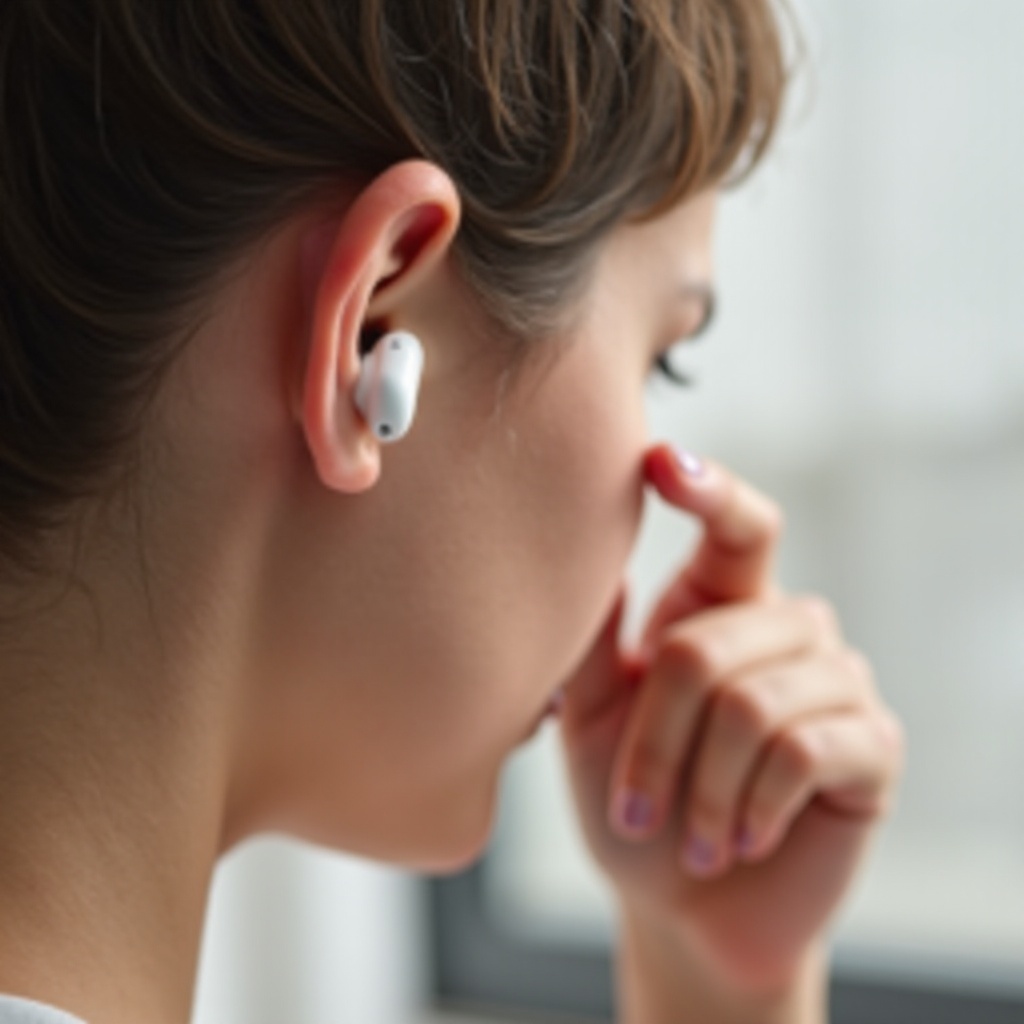
The double tap feature on AirPods is crucial for maximizing their capability, turning your listening experience into a more hands-free and convenient affair. Each AirPod model, including the AirPods Pro and AirPods Max, offers unique double tap gestures tailored for varied uses. These uses could range from managing your music to engaging with Siri seamlessly. Recognizing these functionalities is key to making the most of your AirPods and ensuring an uninterrupted audio experience.
Setting Up Double Tap on Your AirPods
To personalize your experience, begin by correctly setting up double tap on your AirPods. Follow these easy steps to get started:
- Connect your AirPods to your iPhone or iPad.
- Open the Settings app and tap on ‘Bluetooth.
- Identify your AirPods in the list and tap the ‘i’ icon beside them.
- You will see options for both the left and right AirPod. Choose your desired double tap action, which may include Play/Pause, Next Track, or activating Siri.
This initial setup is straightforward, making it easy for users at any level to configure their AirPods. Once completed, you can explore customization to enhance your AirPods’ usability further.

Customizing Your AirPods Double Tap Actions
With the basics in place, it’s time to delve into customization, allowing you to tailor your AirPods experience.
- Accessing the AirPods Settings: Revisit the Bluetooth settings to access and adjust your AirPods options for a personalized setup.
- Personalizing Left and Right AirPod Commands: Assign different functionalities to each AirPod. For instance, use one for music control and the other for Siri.
- Common Customization Options: Select from a range of options like Play/Pause, Next Track, Previous Track, and Siri activation, adapting these settings to fit your routine.
These adjustments will significantly boost the AirPods’ performance, ensuring they match your personal preferences and daily demands.
Optimizing Double Tap Sensitivity
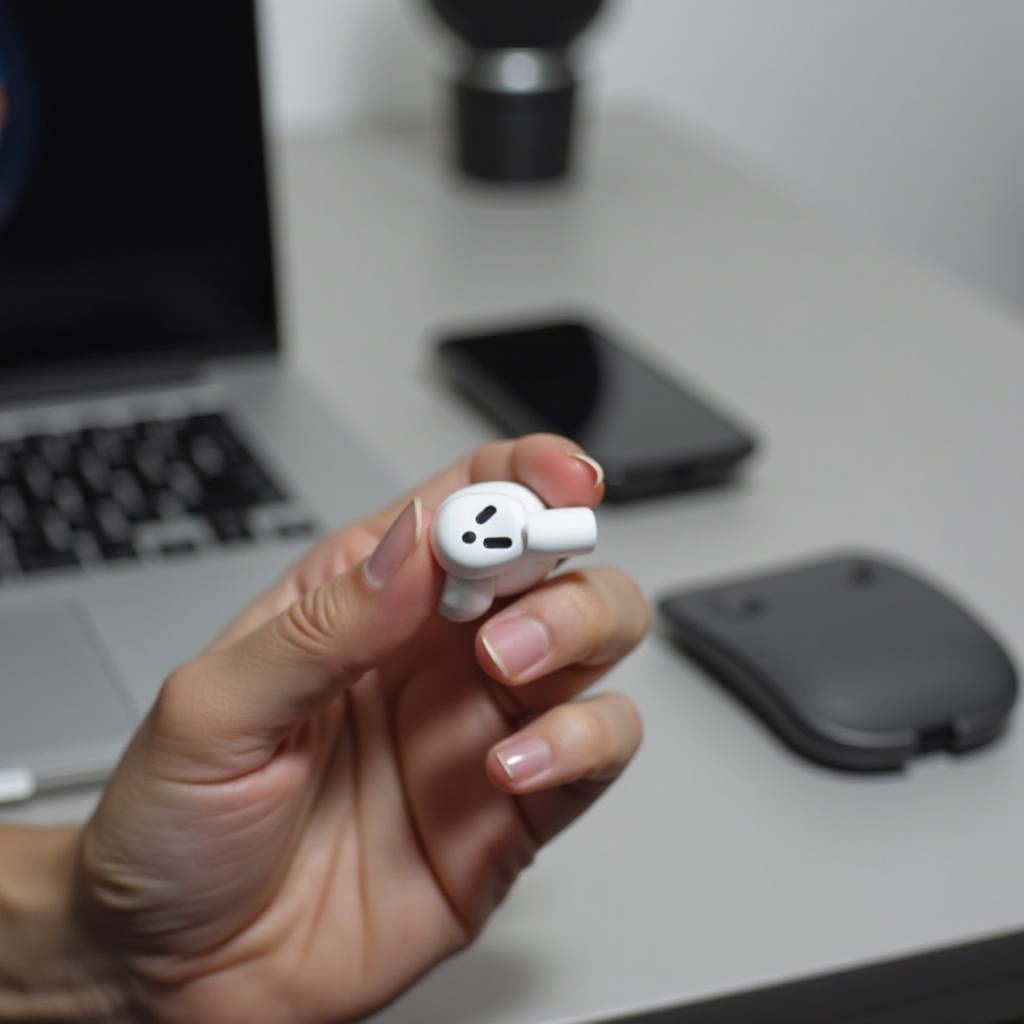
Ensuring your double tap actions are responsive is vital for smooth functionality. Here are some tips for optimizing tap sensitivity:
- Clean your AirPods regularly to prevent debris from blocking the sensors.
- Tap with a firm and deliberate motion to ensure the sensors register each tap.
- Experiment with different levels of tap firmness to discover what yields the best response.
By refining the sensitivity, you ensure your AirPods remain reliable and accessible, even in dynamic situations.
Troubleshooting Common Double Tap Issues
It’s not uncommon to encounter issues with double tap functionality. Here’s how you can troubleshoot these problems effectively:
- Connectivity Issues: Always verify that your AirPods are charged and properly paired with your device. If problems persist, consider resetting your AirPods.
- Unresponsive Double Tap: If taps aren’t registering, try altering your tap speed or thoroughly cleaning the sensors.
- Hardware and Software Updates: Keep your AirPods and iOS devices updated to prevent connectivity bugs and improve functionality.
Addressing these issues proactively will keep your AirPod experience smooth and frustration-free, allowing you to enjoy their full range of features uninterrupted.
Enhancing Your AirPods Experience with Double Tap
Once issues are resolved, enhance your interaction with AirPods by strategically using the double tap feature:
- Utilize Siri for hands-free operation in cases where manual control is inconvenient.
- Try out various functions in different situations to determine optimal control settings.
- Use third-party applications if available to further expand your AirPods’ capabilities.
A well-tailored use of the double tap ensures that AirPods remain a true companion in enhancing your productivity and leisure activities.
Conclusion
Mastering the double tap function on your AirPods revolutionizes your audio experience, giving you effortless control over your device. By customizing and troubleshooting effectively, the technology is rendered seamless and adapted to your lifestyle. Embrace the ease and efficiency of fingertip management, whether at work or during leisure.
Frequently Asked Questions
How do I reset my AirPods if double tap isn’t working?
To reset your AirPods, place them in their case, close the lid, wait 30 seconds, then open the lid. Press and hold the setup button until the status light flashes amber, then white.
Can I use double tap to control volume on my AirPods?
No, the double-tap function doesn’t directly control volume. However, you can set one AirPod to activate Siri for volume adjustments via voice command.
Do older AirPods models support double tap functionality?
Yes, all AirPods models, including the first generation, support double tap features, although specific options might vary slightly by model.