
How to Locate Files on Your iPad Efficiently in 2024
Introduction
iPads serve a crucial role in modern digital life, acting as tools for work, learning, and leisure. The need to efficiently locate files on your device is more important than ever, impacting productivity and reducing frustration. This guide aims to equip you with practical strategies to efficiently locate files on your iPad, helping you remain organized and productive.

Understanding the Files App
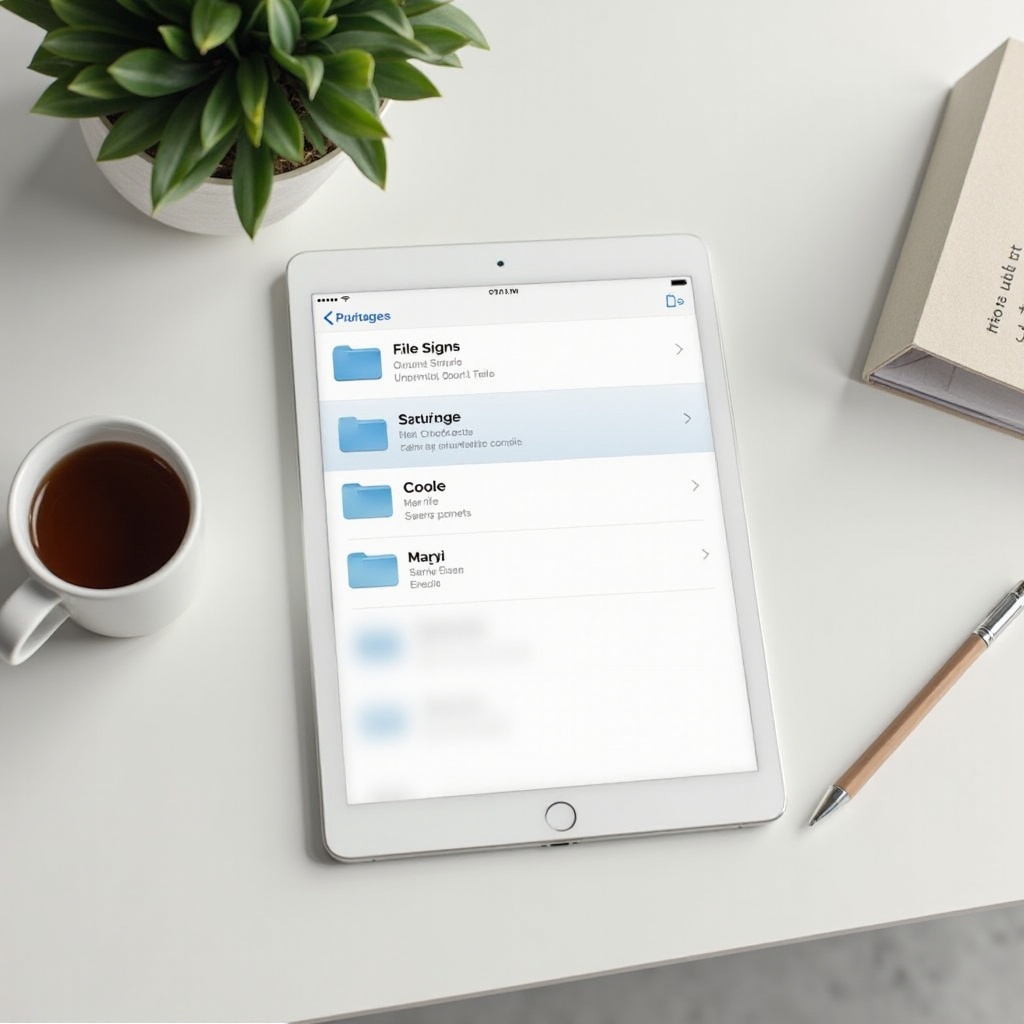
The Files app is central to file management on the iPad. As a default application, it’s designed to provide seamless access and management of files stored both locally and in the cloud.
- Interface and Key Features: With a user-friendly layout, the Files app includes sections like Recents, Browse, and Search, allowing you to intuitively navigate your files.
- Differences in New iOS Versions: Recent iOS updates have enhanced integrations with third-party apps, improved search functions, and expanded file organization capabilities. Familiarizing yourself with these updates can streamline your file access.
Understanding the design and features of the Files app sets a solid foundation for navigating your digital workspace.
Accessing and Navigating Files
Effective file navigation involves knowing where your files are stored and how to access them quickly.
- Files App Browsing: Use the Browse tab to explore various locations like iCloud Drive and On My iPad. This approach helps you pinpoint your files with just a few taps.
- Accessing iCloud Drive and Local Storage: Knowing whether your files are stored in iCloud or locally on your device aids in quicker retrieval.
- Integrating Third-party Cloud Services: The Files app’s support for services like Google Drive and Dropbox allows for efficient management of all your files from one location.
Quick and easy access is achieved when you understand different storage locations and utilize the powerful browsing features available.

Utilizing the Search Function
The search function in the Files app can significantly reduce the time spent looking for specific files.
- Search Efficiency: Enter keywords or phrases in the search bar to quickly locate files. Predictive suggestions enhance search results, allowing for instant access.
- Using Filters and Tags: Apply filters by file type or when last modified. Tags add another layer of organization, making searches even faster.
Incorporating these search strategies complements navigational knowledge, making your workflow smoother and more intuitive.
Organizing Files for Easy Access
Organizing your digital files is key to maintaining order and easy access.
- Creating and Managing Folders: Develop a logical folder structure by project, date, or type. Press the ‘New Folder’ button in the Files app and name folders clearly for swift identification.
- Implementing a Consistent File Naming System: Use descriptive titles including project names or dates, which simplify searches and foster organization.
- Tags and Labels: Apply color codes and tags strategically to classify files by priority or category.
Organizing files effectively reduces the time spent searching and ensures important information is always within reach.
Troubleshooting Common Issues
At times, you may encounter challenges in locating files. Here are some solutions:
- File Syncing Problems: Ensure iCloud syncing is enabled by checking ‘Settings’ > ‘Apple ID’ > ‘iCloud’ > ‘Files.
- Inaccessible Files: If a file won’t open, update the app or try accessing it through a different application.
- Recommended Third-party Apps: Consider using applications like Documents by Readdle or GoodReader for enhanced file management capabilities.
Effectively troubleshooting these issues not only helps you resolve immediate concerns but deepens your understanding of how to navigate file management hurdles.
Using Advanced Features
Advanced features within the iPad enrich your file management capability.
- Automating Tasks with Shortcuts: Leverage the Shortcuts app to create workflows that automatically handle file organization or sharing.
- Utilizing Quick Actions: Long-press files to quickly move, share, or compress them — speeding up routine tasks.
These advanced features enhance your already refined file management routine, boosting productivity and simplifying processes.
Conclusion
Proper file management on your iPad can greatly enhance productivity and reduce daily hassles. By mastering the Files app’s capabilities, you can navigate, organize, and manage your files with ease. The continued exploration of available features will further refine these skills, making file navigation second nature.
Frequently Asked Questions
How can I find files with Spotlight Search on my iPad?
To use Spotlight Search, swipe down from the middle of the Home screen. Type the name of the file and tap to open it when it appears in the results.
What should I do if I can’t find a downloaded file?
First, check the ‘Downloads’ folder in the Files app. If it’s not there, try searching for part of the file name or look in the app you used to download it.
Can I access non-iCloud files on other devices?
Yes, for files not stored in iCloud, use services like Dropbox or Google Drive for cross-device accessibility, ensuring that these services are synced properly.