How to Resolve Printhead Problems on HP OfficeJet Pro 6830
Introduction
Experiencing printhead problems with your HP OfficeJet Pro 6830 can disrupt your printing tasks significantly. Printhead issues often lead to compromised print quality and might even escalate if not addressed. Fortunately, many solutions are available to fix these issues without resorting to costly repairs. This guide outlines comprehensive steps to troubleshoot and restore optimal performance to your printer. We will explore both basic and advanced techniques, enabling you to choose the best approach for your specific situation.
Understanding Printhead Problems
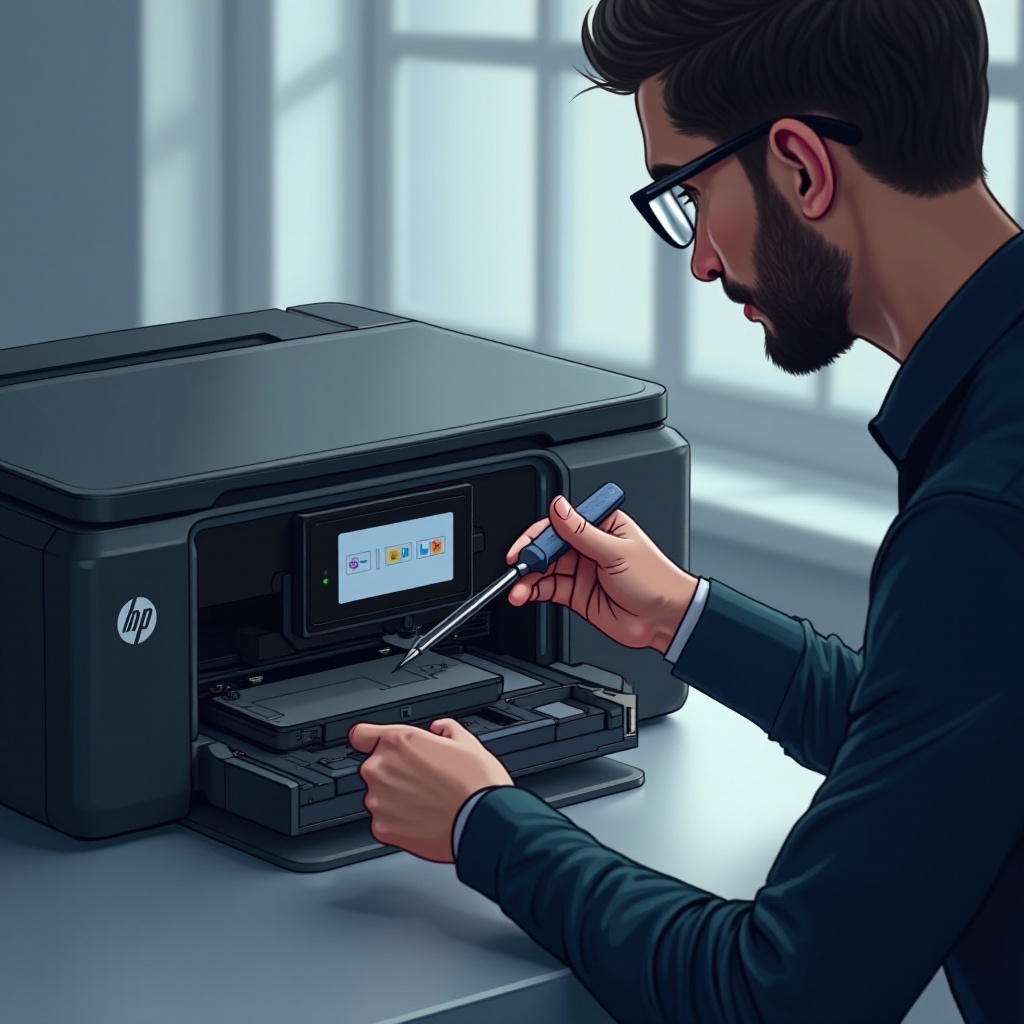
Printhead issues can manifest in various ways that negatively impact print quality. Understanding these symptoms enables you to diagnose problems early and take the correct remedial steps.
-
Common Symptoms of Printhead Issues: Streaks, lines, or missing colors in prints are common indicators. Your printer might display printhead-related error messages that need immediate attention.
-
Causes Behind Printhead Malfunctions: Printhead malfunctions can be caused by clogged nozzles, ink residue buildup, or incompatible cartridges. Infrequent use can lead to dried ink clogging the printhead.
Recognizing problems early allows you to choose appropriate troubleshooting strategies. With this understanding, you’re ready to tackle the issues using basic techniques next.
Initial Troubleshooting Steps
Starting with basic solutions can quickly resolve many minor printhead issues, sparing you more complex interventions later.
-
Checking Printer Status and Error Messages: Assess your printer for any errors displayed on its screen. These indicators can provide specific guidance on troubleshooting steps related to the printhead.
-
Basic Printhead Cleaning Techniques: Utilize your printer’s built-in cleaning utility to clear minor nozzle blockages. This process is typically automated, pushing ink through the nozzles to eliminate obstructions.
After completing these initial steps, test your printer’s output for any improvements. If problems persist, more advanced troubleshooting may be necessary.
Advanced Troubleshooting Techniques
For issues unresolved by initial measures, you might need to try more detailed corrective actions.
-
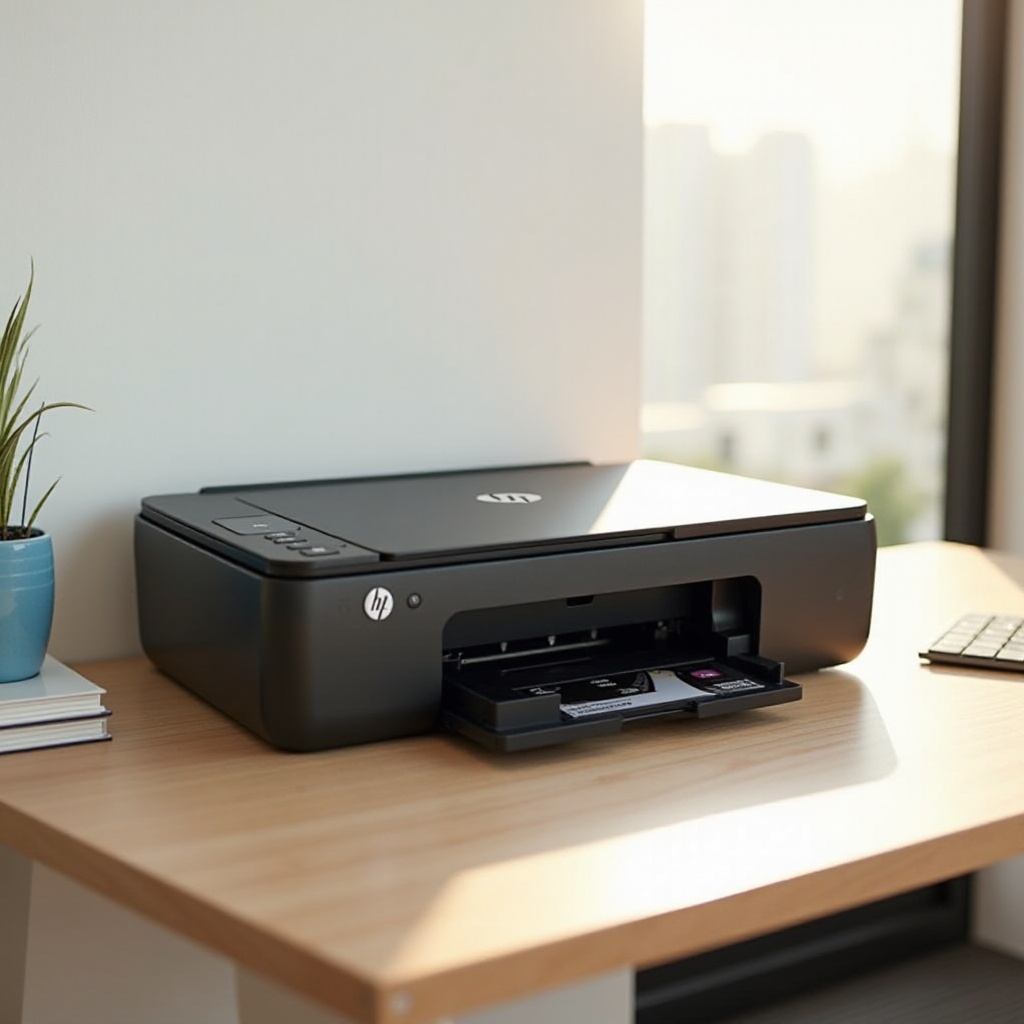
Manually Cleaning the Printhead: Carefully remove the printhead as instructed in the printer manual. Use a lint-free cloth with water or a cleaning solution to gently clear dried ink or debris from the nozzles.
-
Aligning the Printhead Properly: Misalignment can result in poor print quality. Use your printer’s alignment feature to ensure the printhead is correctly positioned, potentially resolving alignment-related issues.
-
Replacing Ink Cartridges: Using old or incompatible cartridges can lead to printhead problems. Ensure fresh, compatible cartridges are installed to prevent clogs.
If your prints remain unclear after these steps, it’s time to consider updating your system’s software as the next troubleshooting effort.
Firmware and Software Solutions
Up-to-date firmware and software can prevent and resolve many hardware-related challenges, including those affecting the printhead.
-
Updating Printer Firmware: Regular firmware updates can resolve bugs affecting print quality. Download the latest firmware for your model from HP’s official site and install it.
-
Reinstalling Printer Drivers: Malfunctions can occur due to outdated drivers. Uninstall and reinstall current drivers from HP’s support site to ensure proper printer function.
These updates stabilize operation settings and reduce future printhead-related issues. If problems persist, consider professional solutions next.
When to Seek Professional Help
Sometimes, printer issues demand professional intervention for effective resolution.
-
Indicators for Professional Repair: If stubborn hardware error messages persist despite all DIY efforts, professional repair is advisable.
-
Contacting HP Support: HP’s support services are accessible via their website or customer hotline. They provide professional guidance tailored to model-specific issues.
Professional assistance might cost more but guarantees that complex issues are resolved without inflicting further damage to your printer.

Conclusion
Addressing printhead issues promptly is essential to prevent costly repairs while ensuring optimal printer performance. This guide provides a mix of basic, advanced, and software troubleshooting steps for resolving many common printer issues at home. When self-fixes fall short, remember professional support is available to assist.
Frequently Asked Questions
How often should I clean the printhead on my HP OfficeJet Pro 6830?
Regular cleaning is recommended every few months for optimal performance. If you print often, consider more frequent cleanings.
Can clogged printheads permanently damage my printer?
Clogs are usually temporary but can cause permanent damage if neglected. Addressing them promptly helps avoid significant issues.
What should I do if my printer still doesn’t work after troubleshooting?
Consider seeking professional repair services or contacting HP Support for model-specific assistance if issues persist.